AutoComplete
CodeVista's Autocomplete uses cutting-edge language models to deliver intelligent, real-time code suggestions as you type.
It enhances developer productivity by offering context-aware completions based on the content of your currently open files—helping you code faster, with greater accuracy and efficiency.
Here's how to make the most of it:
Enabling Autocomplete
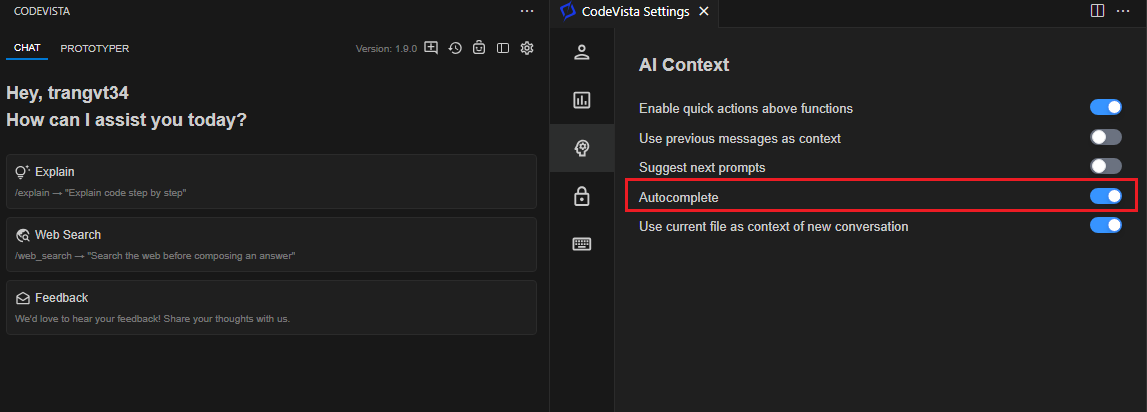
- Autocomplete is enabled by default when you install and launch the CodeVista extension in Visual Studio Code.
- You can disable Autocomplete by turning it off on Settings screen as shown in the image below:
Triggering Autocomplete
-
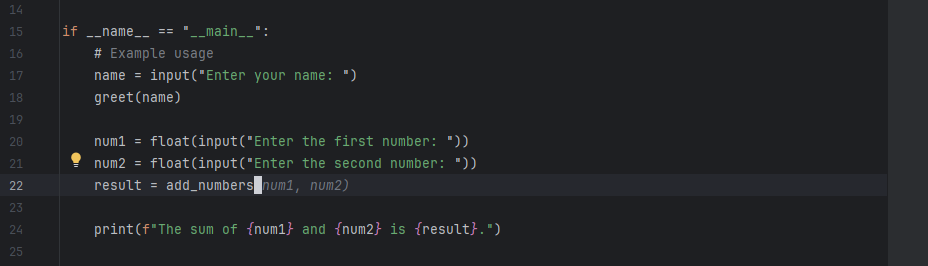
As you type code in your editor, CodeVista will automatically suggest completions for the current line or function you're working on.
-
The Autocomplete suggestions will appear as fuzzy text following the content you are coding.
Accepting Suggestions
- In some cases, CodeVista may provide single or multiple lines autocomplete suggestions.
- To accept an autocomplete suggestion, you can
Tabto insert it.
Limitations and Known Issues
- While the Autocomplete feature is highly accurate, it may occasionally make incorrect suggestions or miss certain edge cases.
- If you encounter any issues or have concerns about a suggested completion, you can always modify or discard it and continue typing manually.
- By leveraging the Autocomplete feature in CodeVista, you can significantly streamline your coding workflow and save time by accepting accurate code completion suggestions as you type. Remember to review and verify the suggested completions before accepting them to ensure they align with your intended functionality.