Prototyper Agent
Prototyper is a professional AI Agent developed by CodeVista to support the rapid prototyping of applications, helping you build the first version of your software in the shortest possible time. With Prototyper, you can perform a wide range of essential development tasks simply by entering a prompt - no manual setup required.
Follow the instructions below to start your first Prototyper task:
Step 1: Access Prototyper Agent
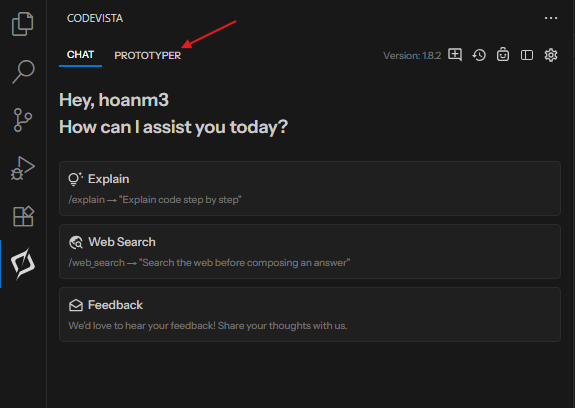
The Prototyper interface will appear as shown below:
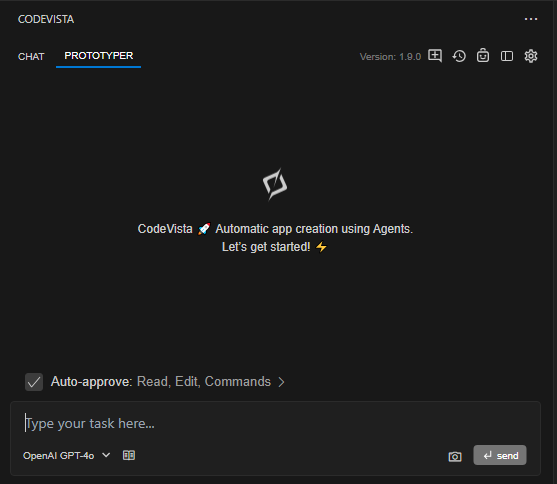
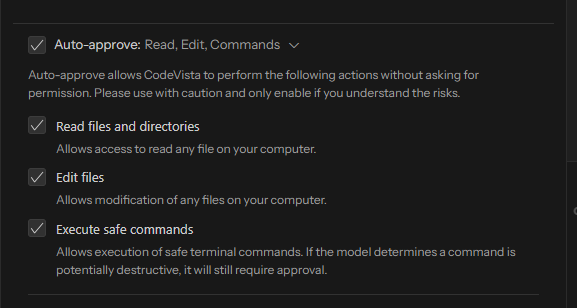
Step 2: Settings approval
By approving Prototyper to read files & directories, edit files, and execute safe commands, Prototyper Agent is now authorized to:
- Read any files on your computer
- Modify any files on your computer
- Execute safe terminal commands (any commands which are determined as potentially destructive still requires user's approval).
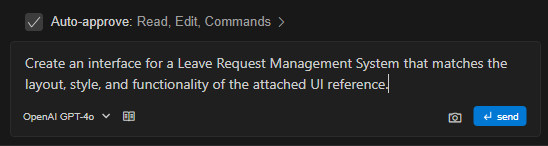
Step 3: Enter your prompt and send to Prototyper
Enter a natural language request at the prompt describing what you want Prototyper to do, and send it.
Optionally, upload an image to guide the layout, style, or functionality.
For example:
"Create an interface for an e-commerce platform."
"Create a tic tac toe game."
"Create an interface for a Leave Request Management System that matches the layout, style, and functionality of the attached UI reference."
Note:
User can click the rule icon to add new Workspace Rules.
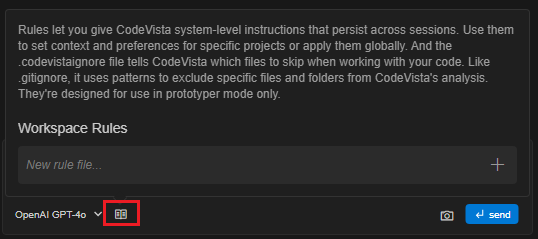
Workspace rules let you provide CodeVista with system-level instructions that persist across sessions.
Use them to set context, analysis scope, coding standards, or project-specific preferences that guide how CodeVista works with your code.
How to add a workspace rule:
- Click the rule icon (shown below the input box) to start adding a new rule.
- Enter a rule file name and Click the (+) icon to create the rule file.
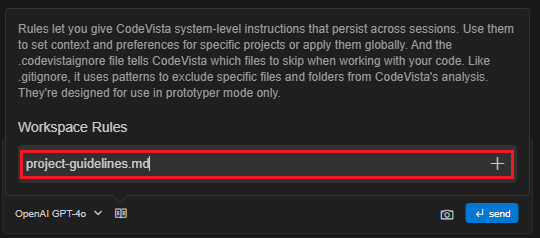
- Open the new rule file and write your instructions, preferences, or guidelines for CodeVista.
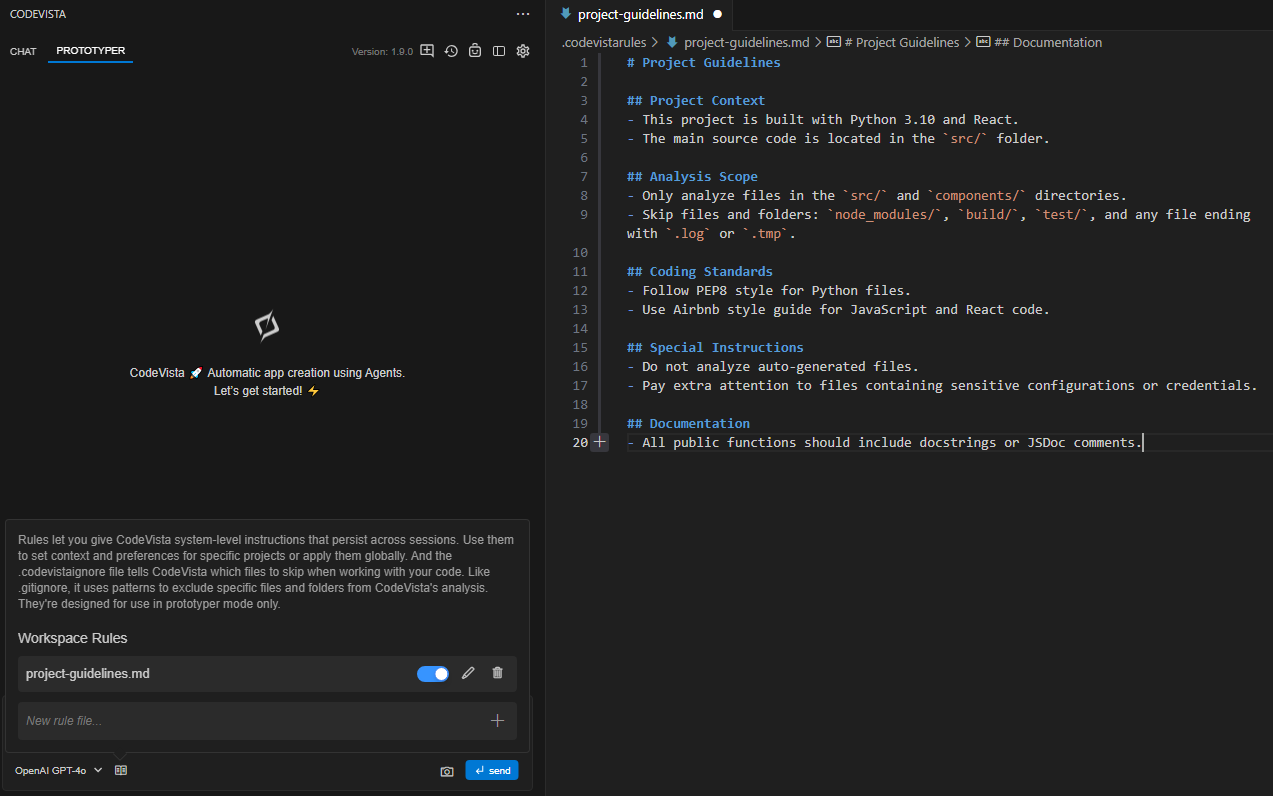
- These rules will be saved and automatically applied to your workspace in future sessions.
Tip:
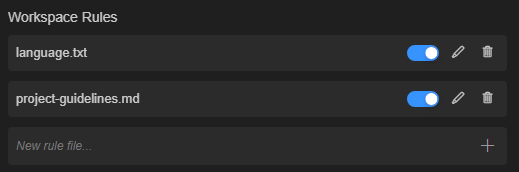
- You can add multiple rule files for each workspace.
- Rules can be edited, deleted, or turned on/off using the corresponding icons next to each rule.
- To ignore files or folders, use a
.codevistaignorefile instead.
Prototyper will interpret your prompt, plan the necessary steps, and perform the required actions (e.g., create files, generate code, or run shell commands).
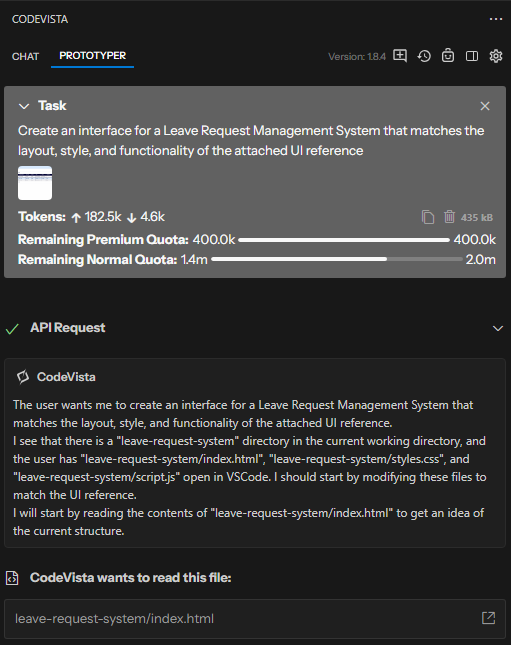
After performing all actions as planned, if the command is considered risky to perform, Prototyper will require user's approval to execute:
For instance, to display the Leave Request Management System, Prototyper still requires user's approval to open an html file:
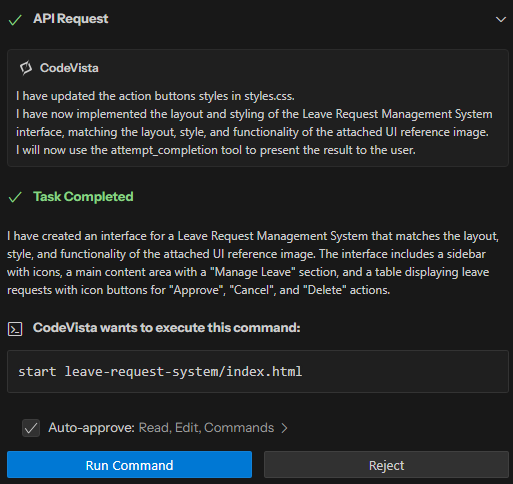
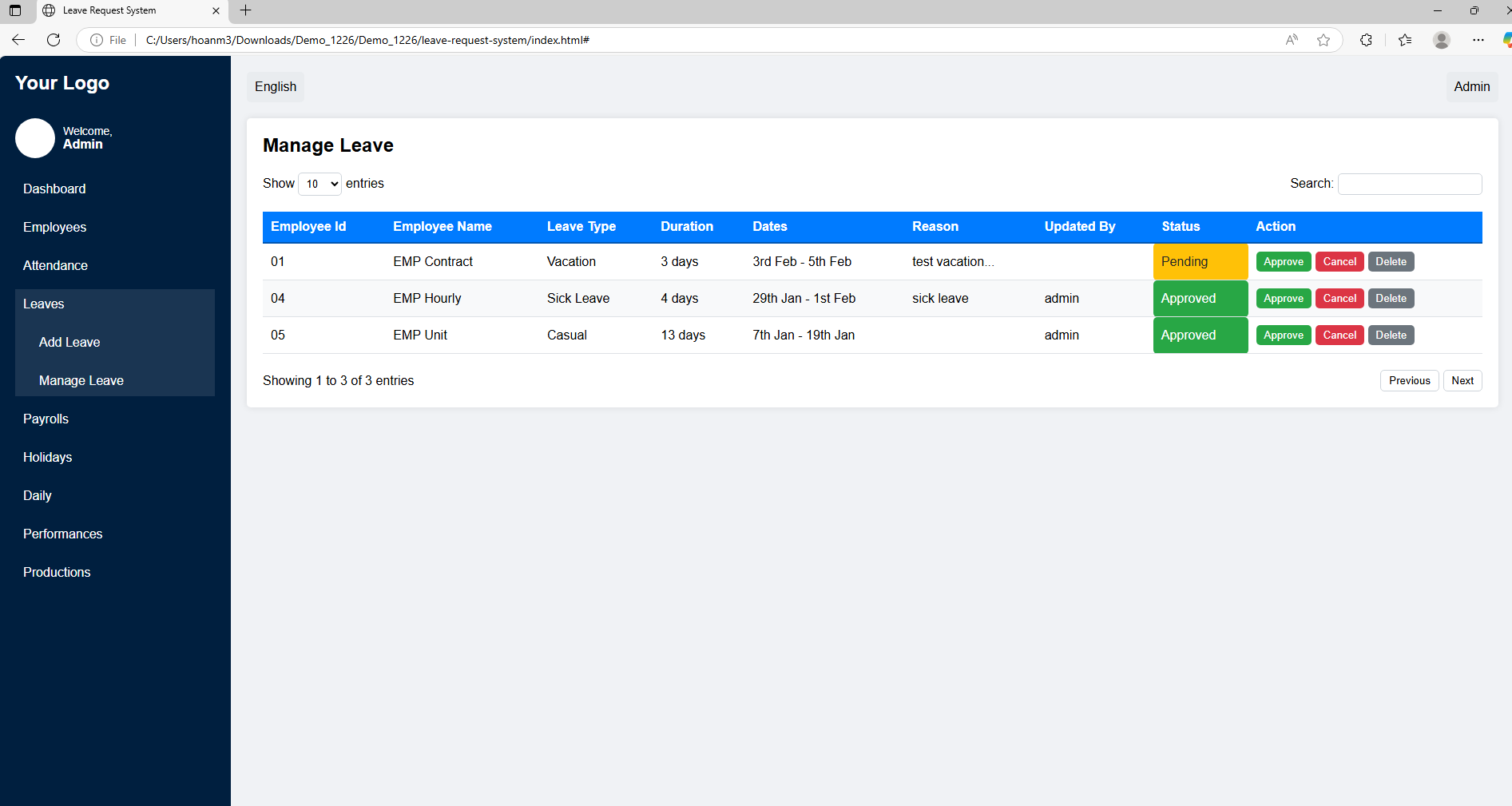
As user selects Run Command, the requested interface will be displayed:
Step 4: Review previous tasks
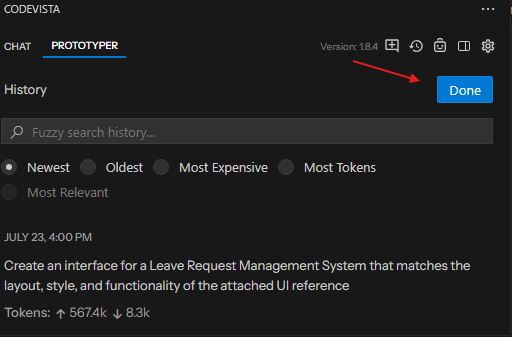
After completing at least one task, a View All History button will appear in the Prototyper Chat Panel. Click this button to view a list of recently executed Prototyper tasks for easy reference and review.
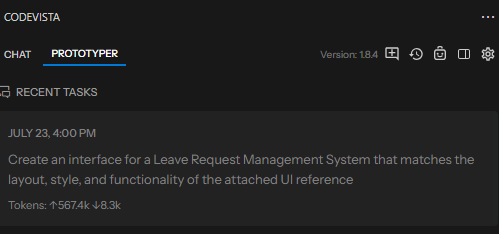
You can search for Prototyper tasks in the history using fuzzy search, and sort them by newest, oldest, most expensive, most tokens, or most relevant.
To return to the regular chat view, click the [Done] button.
When you use the Prototyper agent, your token usage will count towards your quota, depending on the complexity of your prompt-based interface input.
For more information on the Prototyper agent's usage quotas, please refer to this page: CodeVista Usage Quotas