Chat Conversation
The chat feature is the primary way to interact with CodeVista and leverage its AI-powered coding assistance capabilities.
Prompt Input
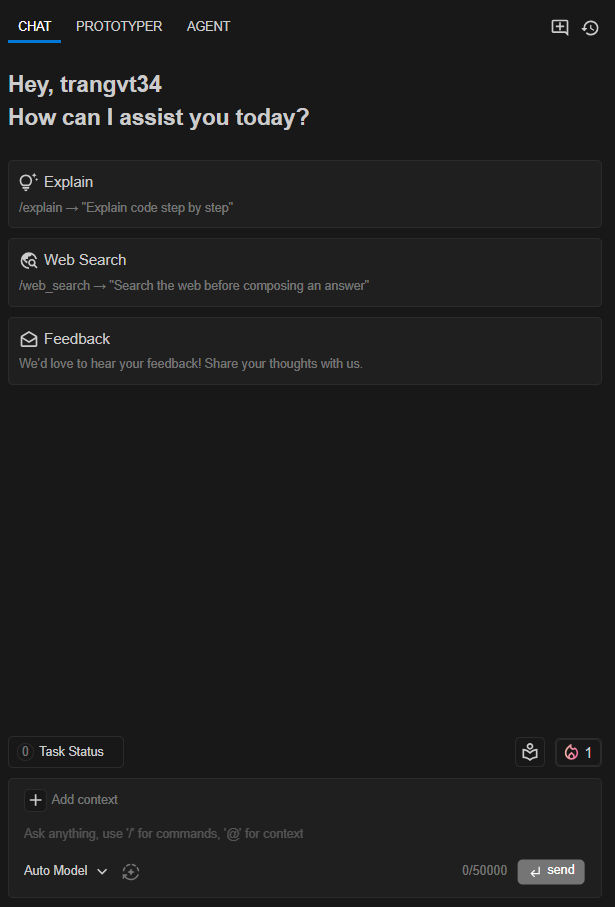
To start, simply type your coding question, task, or command into the prompt input box.
For the best results, be as specific as possible about the problem, desired outcome, or task you need help with.
You're welcome to include code snippets, error messages, or any other relevant information.
Copy and Save a Prompt
After a prompt is sent to CodeVista, you can copy or save that prompt for later use.
Copy a prompt
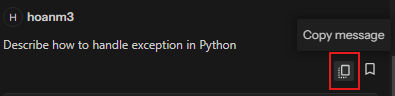
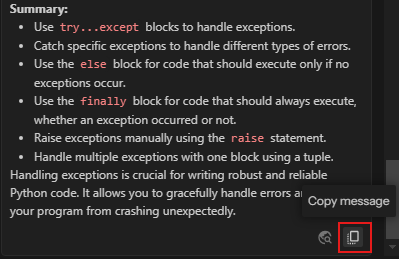
To copy any message, simply hover over the desired message and click the Copy message icon that appears in the bottom-right corner.
Save a prompt
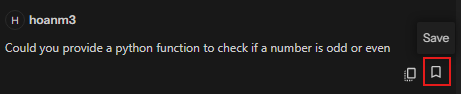
To save a prompt, hover over the submitted prompt and click the Save button:
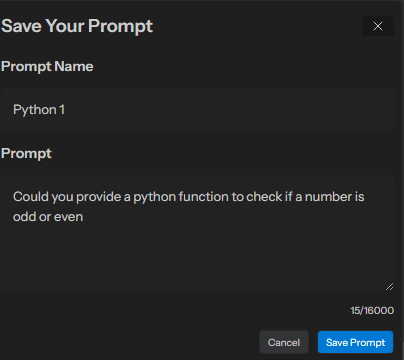
In the Save Your Prompt panel, enter Prompt Name for easier recall later (for instance: python1), and modify the prompt if needed before clicking Save Prompt button:
Reuse a Prompt
CodeVista allows you to recall your saved prompts or make use of over 50 ready-to-use prompts for common coding tasks.
To do that, you just need to access the Prompt Library by clicking the icon shown below:
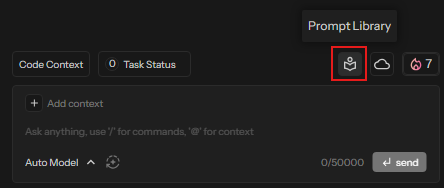
After opening the Prompt Library, you can select My Prompts or Public Prompts for suitable use.
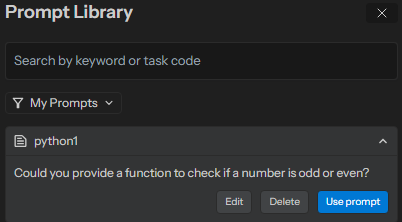
Reuse a Prompt from My Prompts
To re-use, edit or delete a saved prompt, select My Prompts in Prompt Library and click the relevant button:
Use a Prompt from Public Prompts
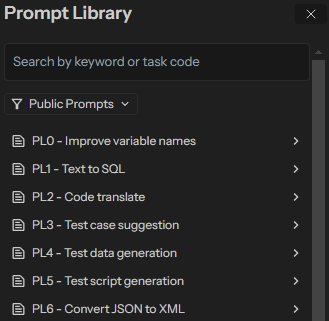
Public Prompts in Prompt Library offers a collection of over 50 ready-to-use prompts for common coding tasks, designed to boost your coding efficiency and productivity.
To use a prompt from Public Prompt Library, select Public Prompts in Prompt Library and select a prompt from the list:
Check out the Prompt Code Translate in Prompt Library for instance:
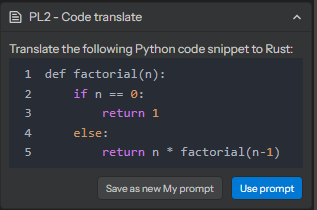
You can:
- Select Use Prompt to insert this template to chat input area
- Select Save as new My Prompt to save this template to My Prompts Library.
LLM Model Selection
You can select an AI Model from the drop-down button under the chat box.
AI Model Selection Menu
CodeVista provides a list of advanced AI models:
- Claude Sonet 4
- Claude Sonet 4.5
- Gemini 2.0 Flash
- Gemini 2.5 Pro
- GPT-5
- GPT-5 mini
- OpenAI GPT-4o
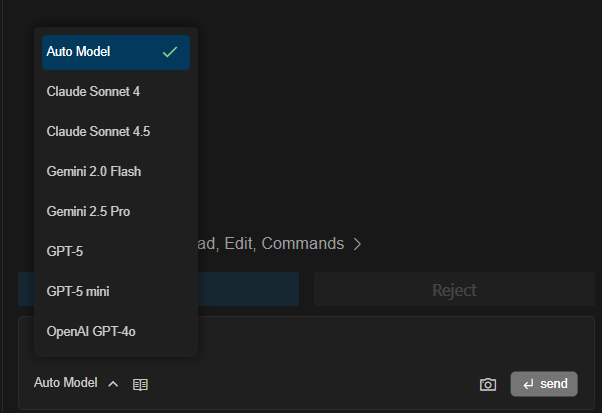
Alternatively, you can select Auto Model, and the system will automatically pick the best one based on your query.
Input Length Limits
CodeVista displays your prompt's input length in real-time, along with the maximum input limit for your selected AI model.
The input length is measured in tokens, which are roughly equivalent to words or characters, depending on the language.
Below are the maximum input length limits for different models:
Model | Max Input Length (Tokens) |
|---|---|
Claude Sonet 4 | 232000 |
Claude Sonet 4 .5 | 232000 |
Gemini 2.0 Flash | 1.056.768 |
Gemini 2.5 Pro | 1.114.112 |
GPT-5 | 304.000 |
GPT-5 mini | 304.000 |
OpenAI GPT-4o | 128.000 |
If your prompt exceeds the input length limit, CodeVista will truncate the oldest messages from the context to accommodate the new input.
You can learn more about tokens and their calculation in this article from OpenAI.
Add Context
The Add Context feature lets you attach files, folders, or code snippets directly in chat, helping the assistant better understand your workspace and provide more accurate help.
How to add context
Step 1: You can add context in either of these ways:
- Click "Add Context" button in the chat interface.
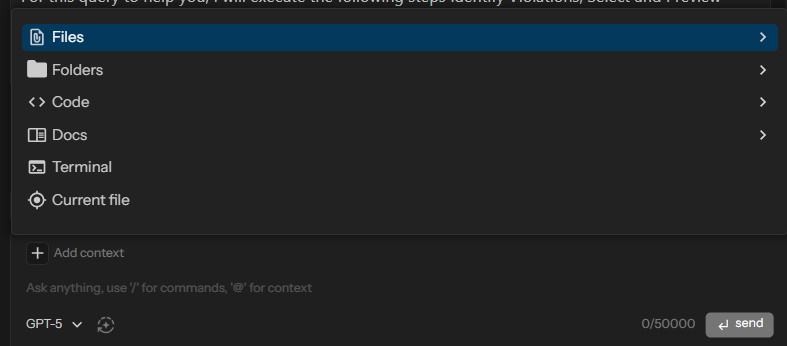
- Type @ in the chat input to open the context picker.
Step 2: You can choose to add a single file, an entire folder, or a code snippet.
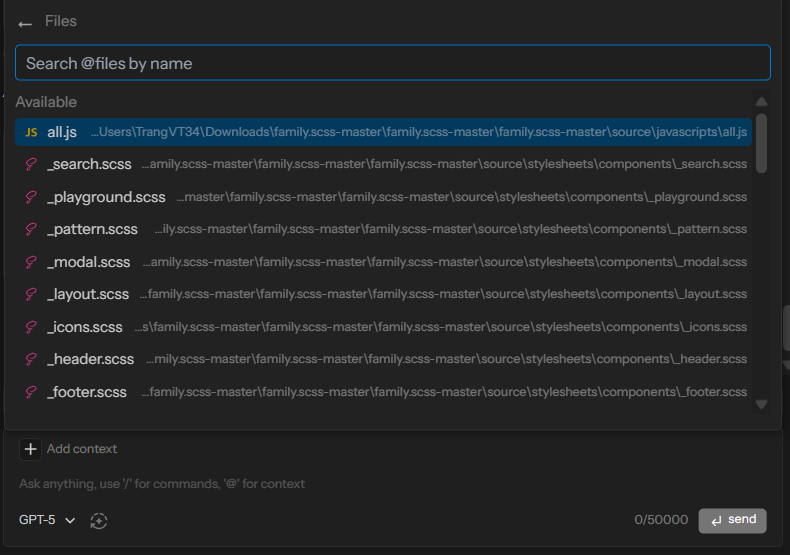
Once context is added, you can ask questions or run commands related to the uploaded file or folder. For example:
- ‘Can you review the code in all.js?’
- ‘What errors do you see in this folder?’”
Add Context bridges the gap between your workspace and the AI assistant, enabling it to understand your codebase and environment so it can deliver smarter, more relevant support.
Prompt Improvement
CodeVista as well assists you input prompts by offering to enhance the questions or requests before submission.
First, type in your question or request, then click the Improve button:

CodeVista then provides user with a better, clearer and more accurate prompt. You can additionally try to modify or improve the prompt once more before sending to CodeVista.

Suggested Prompts
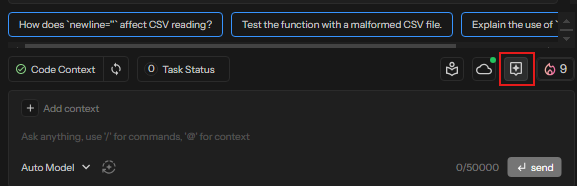
After each response, CodeVista may display up to three suggested prompts related to the current context.
To enable this, go to Settings >> AI Context >> enable 'Suggest next prompts':
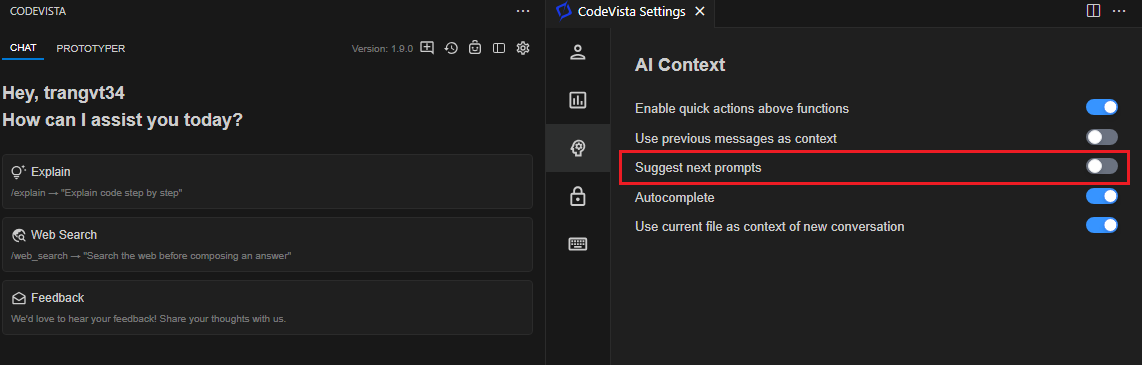
After this, when you enter and send your coding-related question, you can select the icon highlighted in the figure below and click on a suggested prompt to populate it in the prompt input box for easy editing or submission.
Review Responses
After submitting your prompt, CodeVista will process it and provide a response in the chat window.
Responses may include code snippets, explanations, or suggestions related to your prompt.
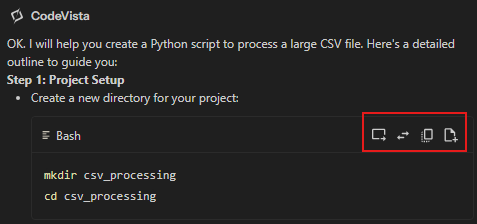
If the response includes code snippets, you'll see buttons to:
- Insert code at cursor
- Replace selected code
- Copy to clipboard
- Insert into a new file
You can also copy the response by clicking the Copy message button at the bottom right corner of each response.
Conversation History
Create New Chat Conversation
To start a new chat, click New Conversation in the top-right corner of the CodeVista panel.
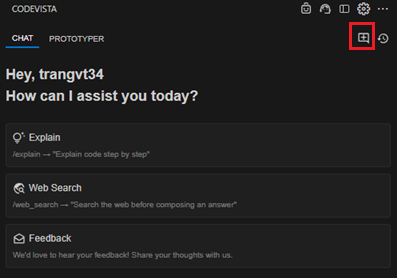
Whenever you start a new conversation (by clicking the highlighted button), the current chat content will be automatically saved.
Notes:
- CodeVista uses the conversation history as context for its responses, ensuring continuity and relevance.
- If the conversation history exceeds the model's input limit, the oldest messages will be discarded to make room for new ones.
View Conversation History
To view all your conversations, click the History icon in the top-right corner of the chat window.
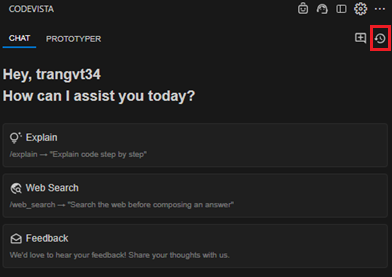
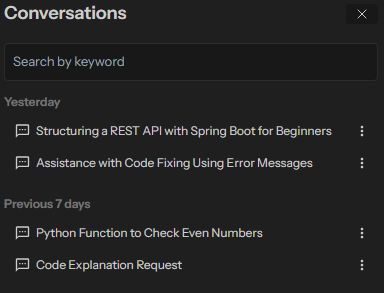
Your chat conversations are displayed in chronological order, with the most recent ones at the top.
They are categorized into Today, Yesterday, Previous 7 days and Remaining conversations sections.
To find a specific conversation, use the search bar at the top.
Manage Chat Conversations
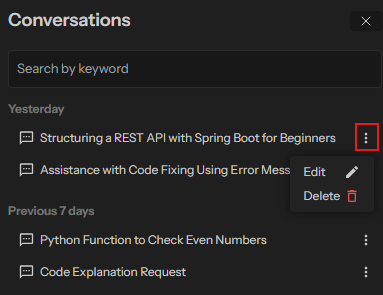
After viewing the list of chat conversations, you can Edit or Delete a chat by clicking the three-dot icon next to it.
Notes:
Remember, CodeVista is a powerful tool, but it's essential to review and validate any code or suggestions it provides before implementing them in your projects.
Additionally, be mindful of any limitations or known issues mentioned in the documentation.