Quick Start
Prerequisite
Prerequisite for CodeVista: AI Coding Assistant (FPT Internal)
Valid Email Account | @fpt.com email account (external email accounts not supported) |
Installation
Install CodeVista IDE Extension
CodeVista: AI Coding Assistant (FPT Internal) is designed to support FPT employees within Visual Studio Code. Follow the steps below to install and get started with CodeVista.
Installation Methods
You can install CodeVista using either of the following approaches:
Option 1: Install from the Visual Studio Code Marketplace
- Search for the latest version of CodeVista: AI Coding Assistant (FPT Internal) on the Visual Studio Marketplace.
- Click "Install" to add the extension to Visual Studio Code.
Option 2: Install Directly from Visual Studio Code
- Open Visual Studio Code.
- Navigate to the Extensions view by clicking the Extensions icon in the Activity Bar.
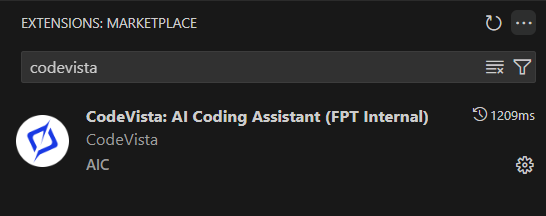
- Type "CodeVista" in the search box.
- Select CodeVista: AI Coding Assistant (FPT Internal) from the results and click "Install".
Enable CodeVista Extension
After installation, the CodeVista extension should be enabled automatically.
If not, you can enable it manually by clicking the Reload button in the Extensions list.
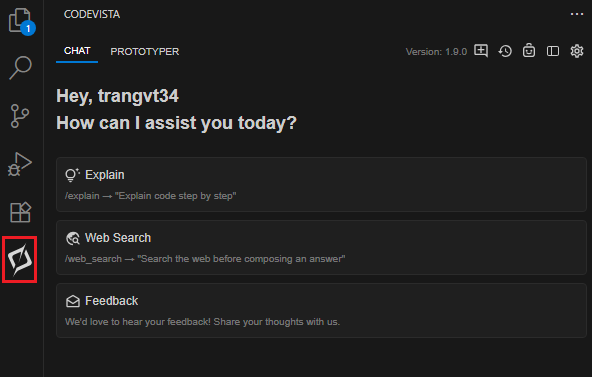
When CodeVista is successfully enabled, the side activity bar will display an icon for CodeVista. Click this icon to log in and start using CodeVista as your coding assistant.
Note:
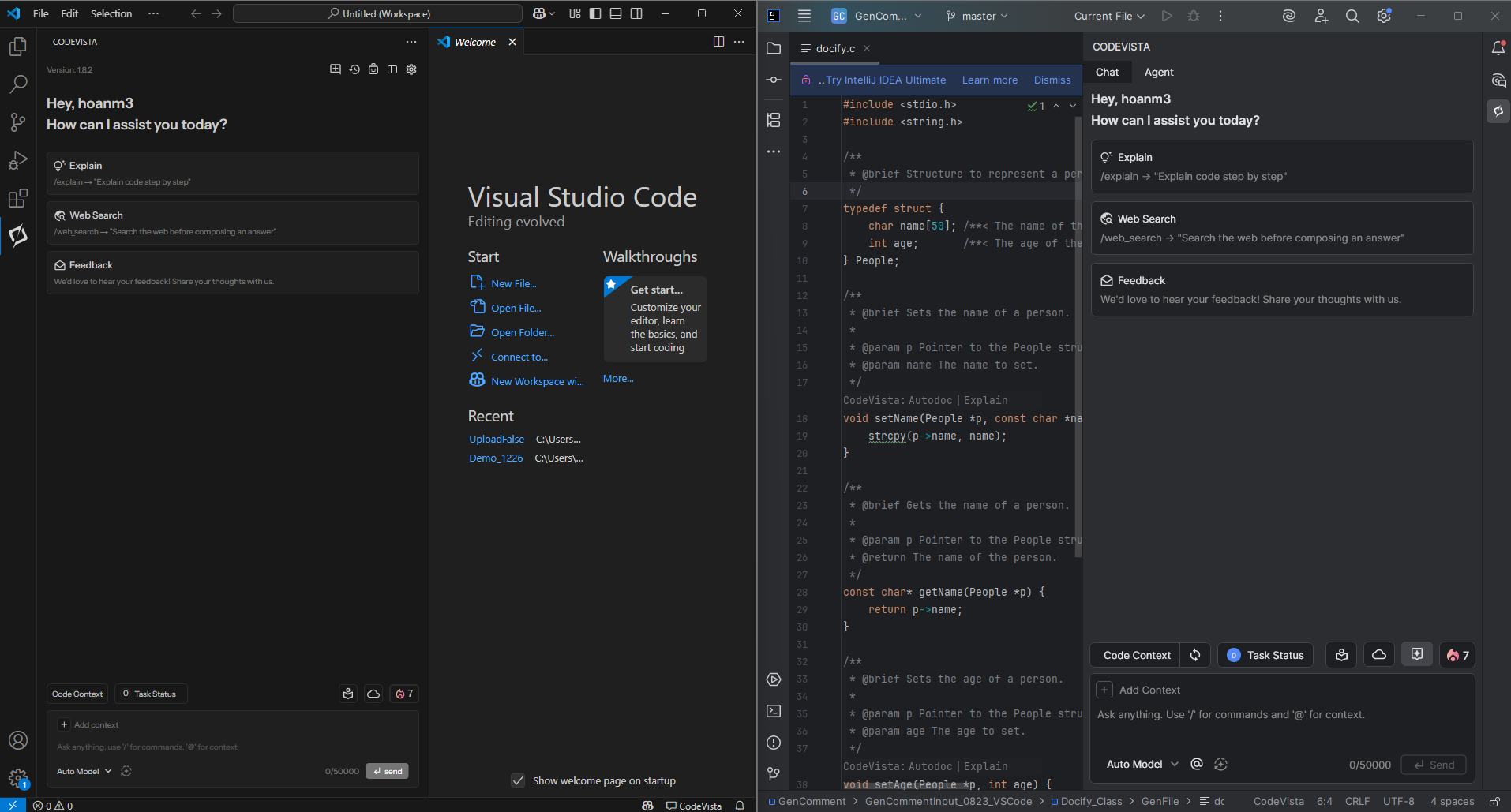
CodeVista integrates seamlessly with various Integrated Development Environments (IDEs), enabling developers to work in their preferred tools while leveraging CodeVista's features:
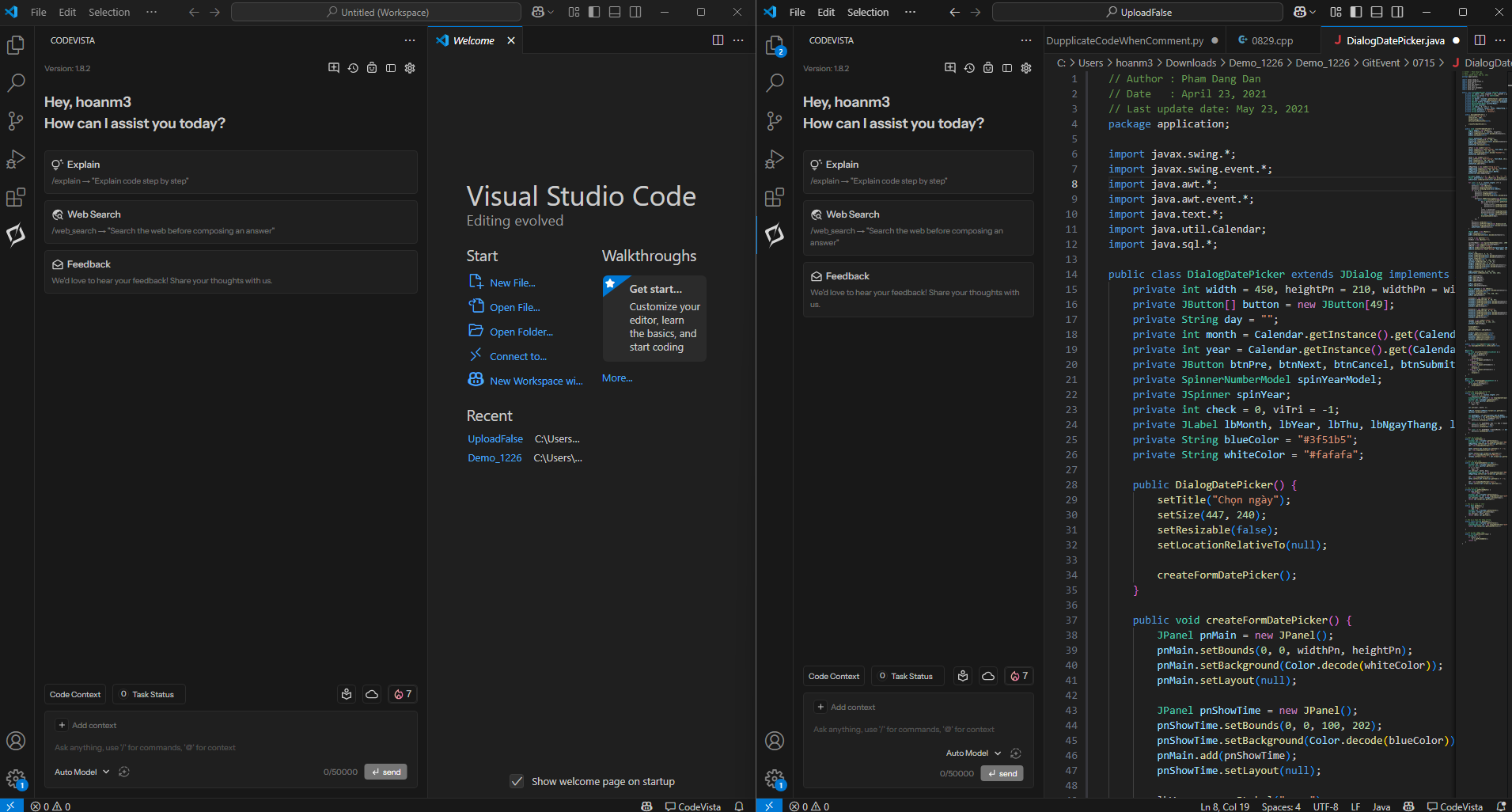
In addition to supporting multiple IDEs, CodeVista allows developers to work with multiple instances of the same IDE:
Log in
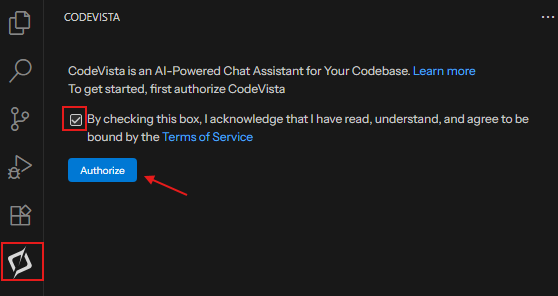
After opening CodeVista on the corresponding IDE, select the option as in the figure below for continuous login to the CodeVista.
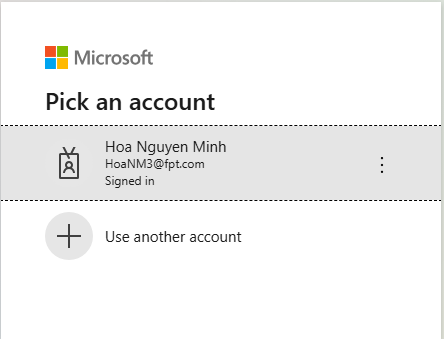
Then select your FPT account email to proceed.
Grant Permissions (if prompted)
- Depending on your system configuration, you may be prompted to grant certain permissions to the CodeVista extension.
- Review the requested permissions and grant them if you're comfortable doing so.
Project Selection
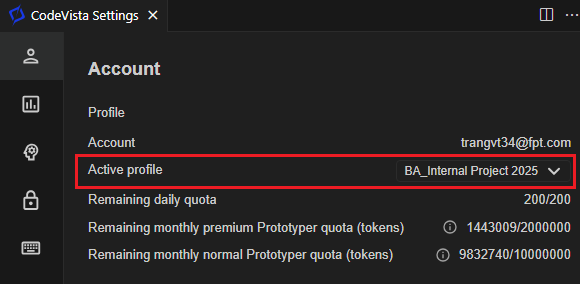
On the Settings screen, you can choose among assigned projects from the drop-down button.
CodeVista will provide a list of Profiles with predefined configurations available for projects in which you are a member of: