Quick Start
Prerequisite
Prerequisite for CodeVista: AI Coding Assistant (FPT Internal)
| Requirement | Detail |
|---|---|
| Visual Studio Version | Visual Studio 2022 or later |
| Valid Email Account | @fpt.com email account (external email accounts not supported) |
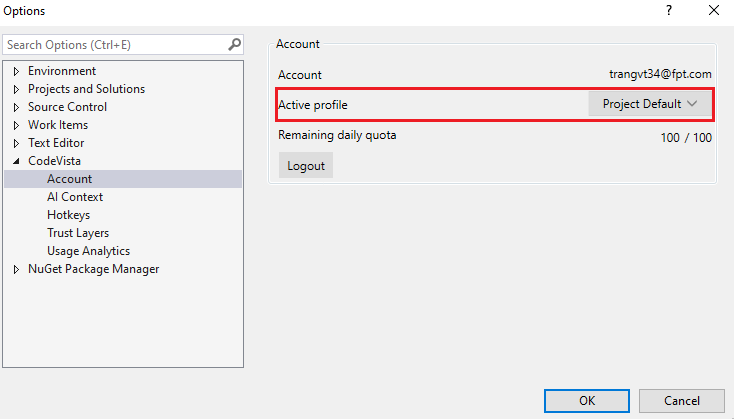
| Usage Quota | Depends on Active Profile Config |
Installation
The latest version of the CodeVista - AI Coding Assistant extension, managed by the AIC team, can be found in the Marketplace or by searching for the CodeVista extension directly in Visual Studio 2022.
Currently, CodeVista: AI Coding Assistant (FPT Internal) is available for use on Visual Studio. This version is intended for FPT employees.
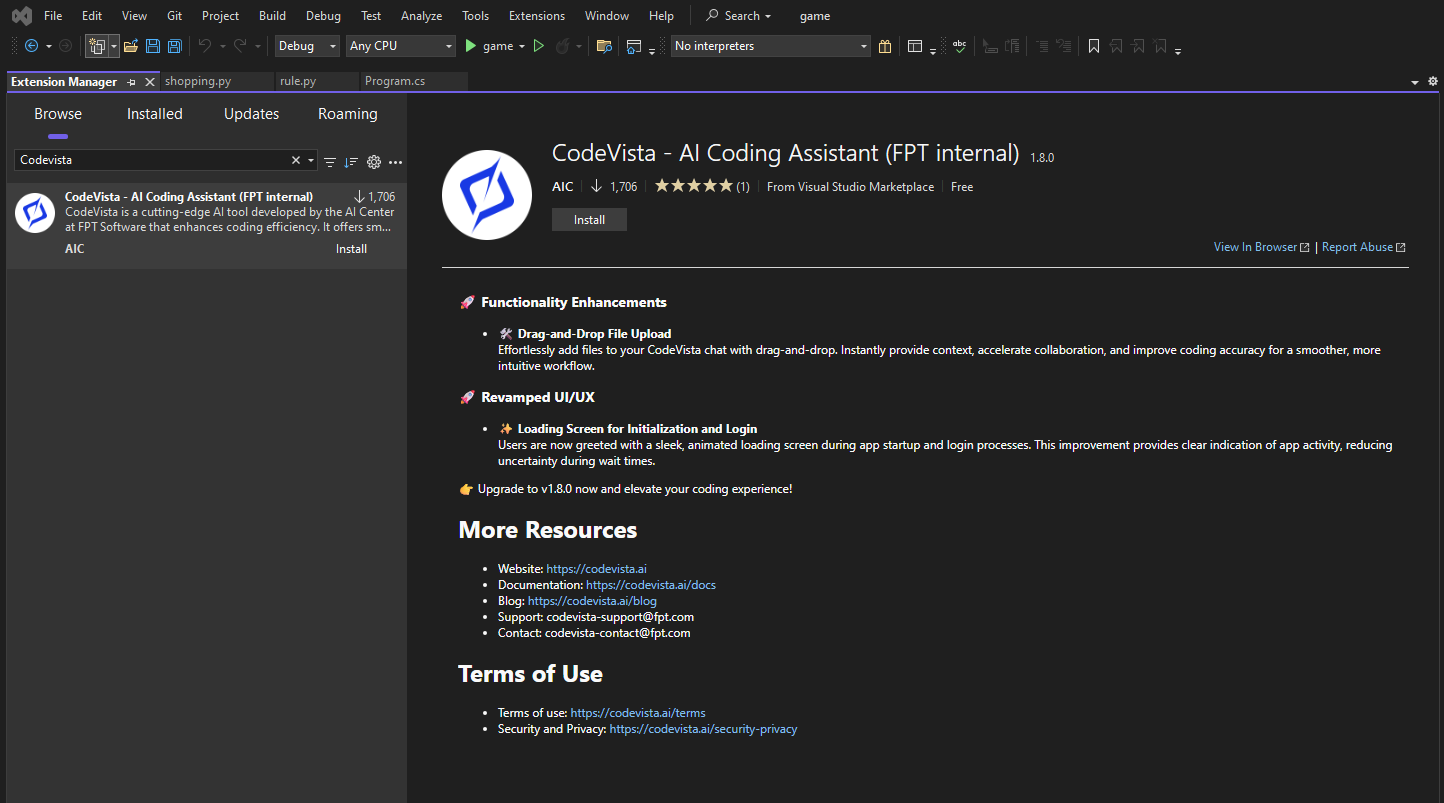
Note: Use only one instance of CodeVista: AI Coding Assistant or CodeVista: AI Coding Assistant (FPT Internal) at a time. Using both simultaneously may cause bugs.
Enable CodeVista Extension
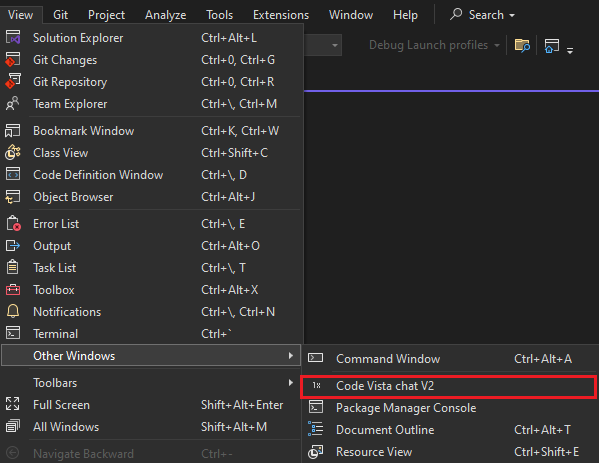
To open the CodeVista window chat, choose View >> Other Windows >> CODEVISTA CHAT.
Login
After opening CodeVista on Visual Studio, click to select "By checking this box, I acknowledge that I have read, understand, and agree to be bound by the Terms of Service." for continuous login to the CodeVista, start a Chat and run CodeVista commands or get access to relevant resources.

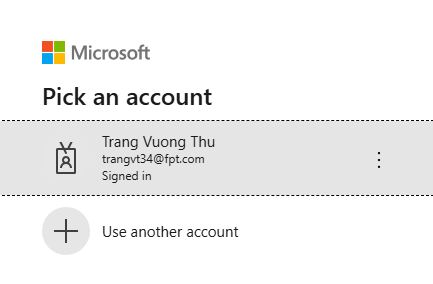
Click to choose your @fpt.com account email for continuation.
Grant Permissions (if prompted)
- Depending on your system configuration, you may be prompted to grant certain permissions to the CodeVista extension.
- Review the requested permissions and grant them if you're comfortable doing so.
Start Using CodeVista
- After logging in, you can start interacting with CodeVista by typing your coding questions or tasks in the prompt input box.
- Explore the various features and functionalities of CodeVista by following the instructions in the User Guide.
Project Selection
From the Settings screen, click to choose among assigned projects. CodeVista will provide you with a list of Profile Configs available for projects in which you are a member of: