How to fix login issues in CodeVista for VS Code
Summary
If you have a problem while trying to log in CodeVista, follow these steps to have it fixed:
First, check the following:
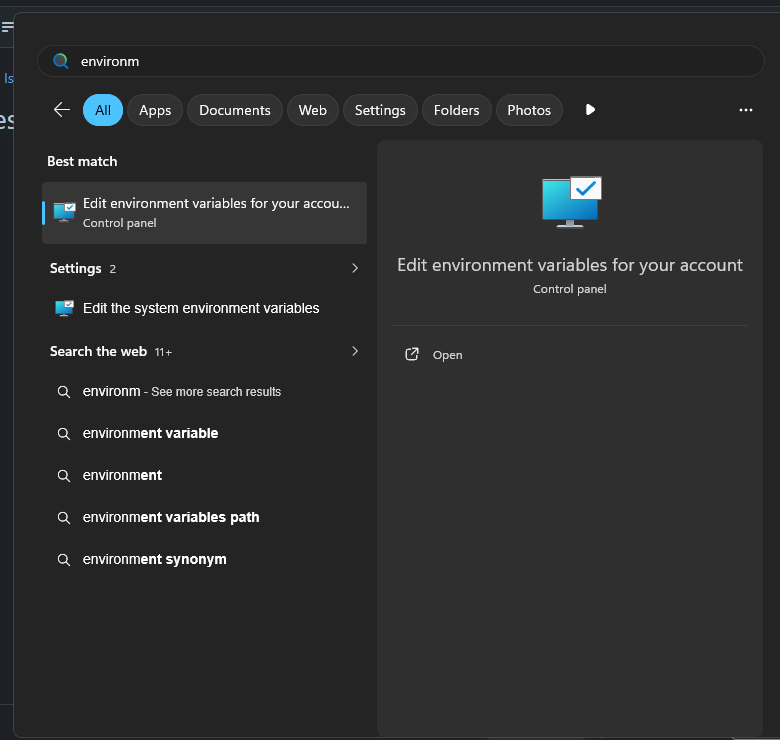
Go to "Edit environment variables for your account":
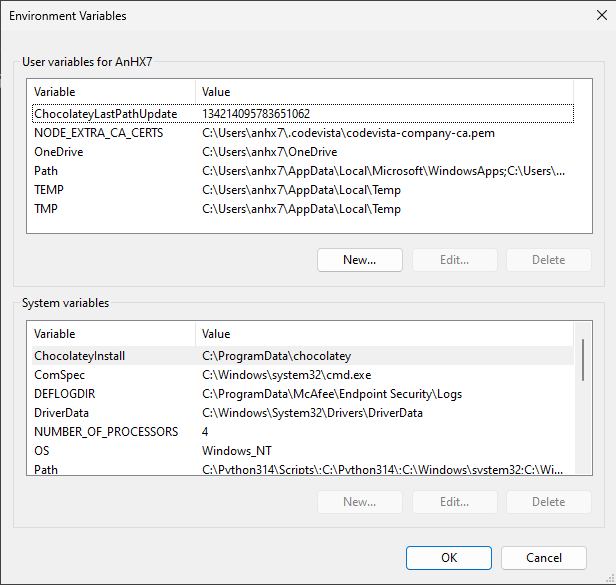
Check both the "User variables for ..." and "System variables" sections for any of the following variables:
- http_proxy
- HTTP_PROXY
- https_proxy
- HTTPS_PROXY
- no_proxy
- NO_PROXY
Now, choose between the below 2 approaches:
If you found any of the above variables
If you found any of those, you have set up proxy via environment variables. Follow the steps:
- Ensure NO_PROXY variable is set. If not, create one in the "User variables" section.
- Add "codevista.fsoft.com.vn" into this variable.
- In your VSCode Proxy settings, ensure all settings are at default settings. If not, reset all of them.
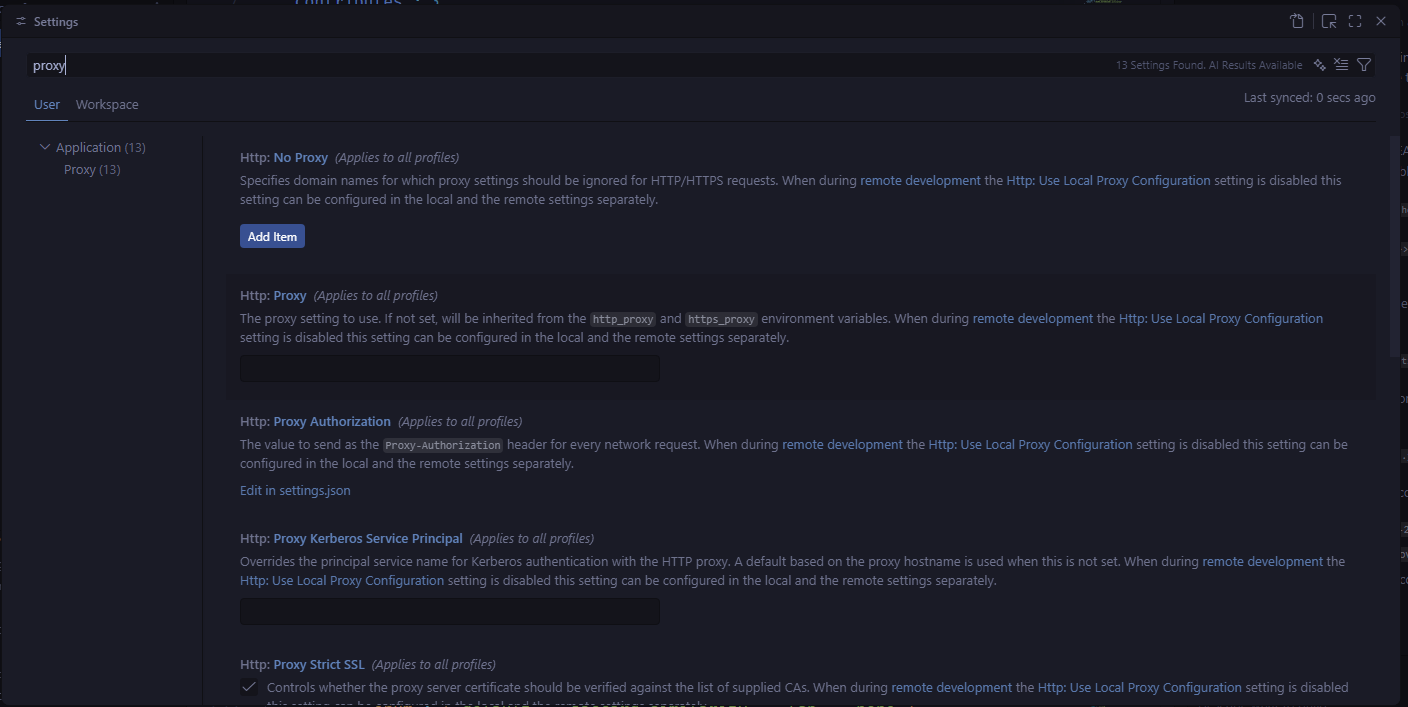
Now close all VSCode windows. Ensure no vscode.exe running via Task Manager. After that, start VSCode and open CodeVista.
If you can't find any of the above variables
This means you are not configuring any proxy via environment variables. You might have configured proxy via Windows settings or not.
In this case, follow the instruction above for clearing VSCode Proxy settings. Close all VSCode windows. Ensure no vscode.exe running via Task Manager. Start VSCode and open CodeVista.
Properties
Applies to: CodeVista v1.3.0+ (VS Code)
Reference:
Knowledge base ID: 0002
Last updated: Jun 03, 2026