CodeVista Agent
CodeVista Agent is your AI-powered expert, purpose-built to help you handle complex tasks within your existing codebase, all from a single prompt. Seamlessly integrated into your IDE such as Visual Studio Code or IntelliJ, the Agent can automatically analyze your code, plan solutions, perform edits, run tests, and verify results. With CodeVista Agent, you can streamline your workflow and tackle multi-step challenges efficiently, without ever leaving your development environment.
Follow the instructions below to start your first Agent task:
Step 1: Access CodeVista Agent
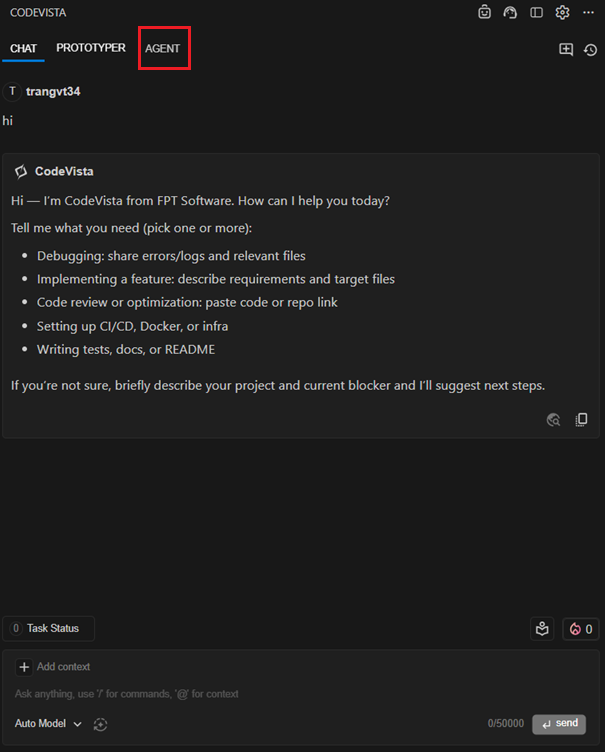
The Agent interface will appear as shown below:
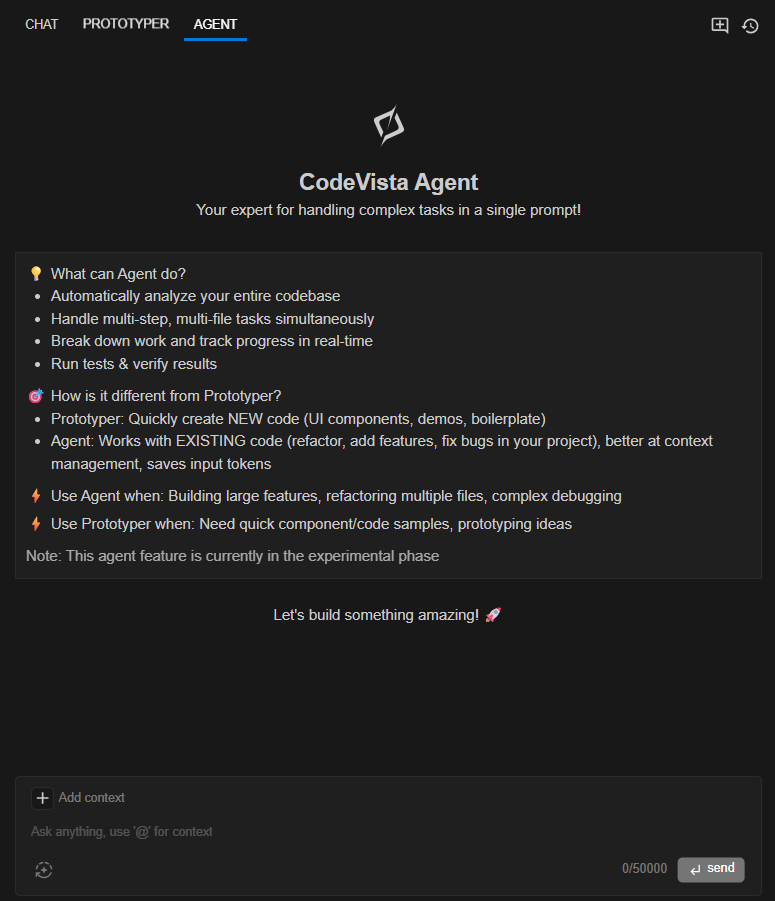
Step 2: Prepare your code project in your IDE
Step 3: Enter your prompt describing the task you want Agent to perform.
For example:
"Refactor the authentication logic to use hashed passwords instead of plain text. Update all related functions and tests"
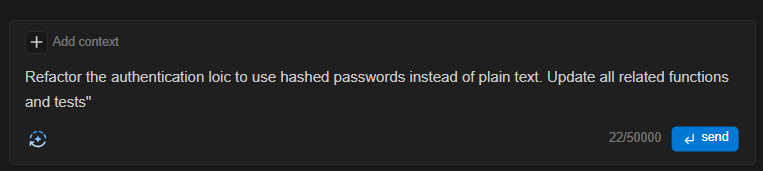
Agent will scan your project, summarize the structure and key files, and generate a clear step-by-step to-do list for your task.
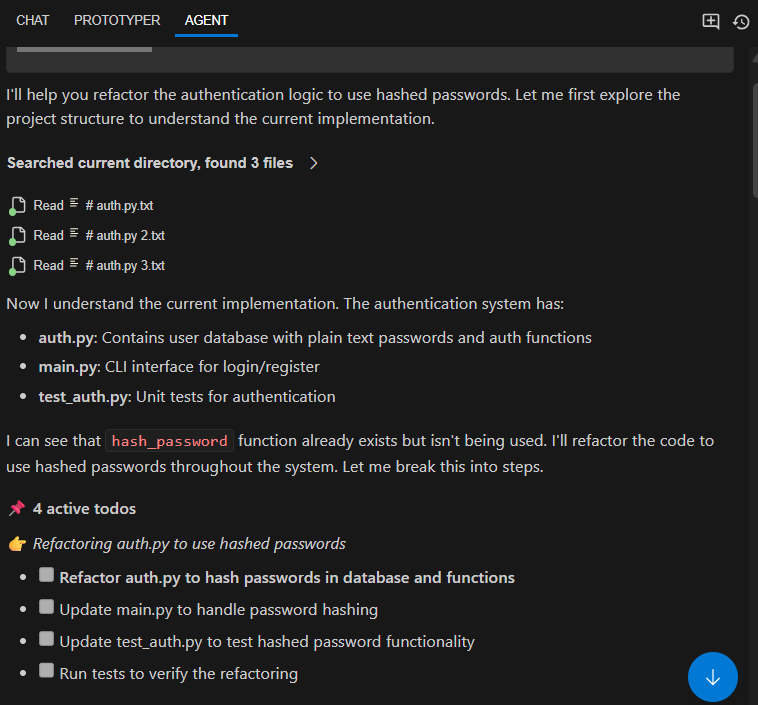
Step 4: Review the to-do list and the actions Agent plans to take.
Example:
- Refactor
auth.pyto hash passwords in the database and functions - Update
main.pyto handle password hashing - Update
test_auth.pyto test hashed password functionality - Run tests to verify the refactoring
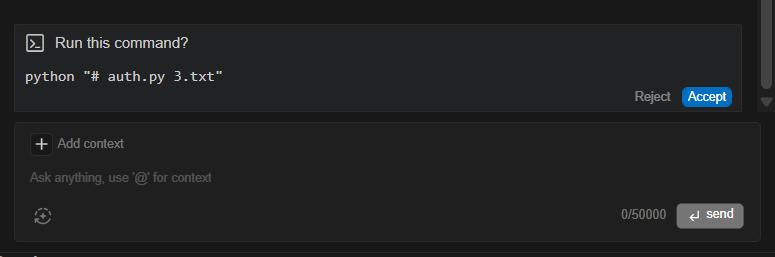
Step 5: When Agent suggests a command (e.g., to run code or tests), carefully review it.
- Click Accept to execute
- Click Reject to skip or modify
Agent will perform the changes, run tests, and show a summary of results and improvements.
You’ll see details of changes made to each file, new tests added, and security enhancements.
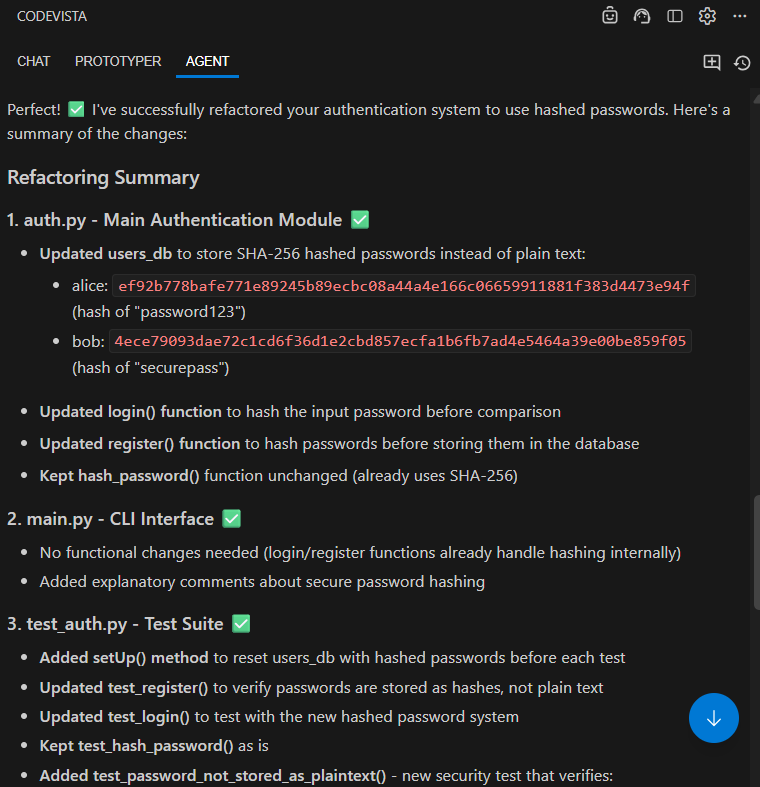
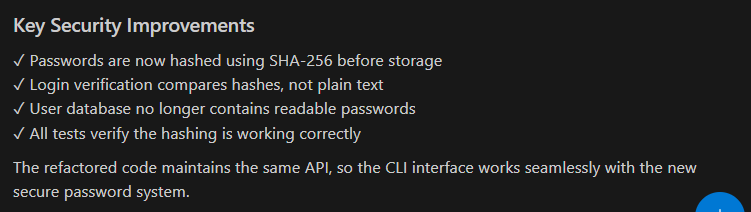
Step 6: Review the final summary. Your task is now complete!
You can check the updated code, run your own tests, or start a new Agent request.
Tips:
- Always double-check commands before accepting, especially those that modify files.
- Use clear prompts for best results.
- Review the summary to understand all changes and improvements.